In short
- The short answer: an AI image generator can retouch a portrait, edit a room, restyle a photo, sharpen a blurry picture, remove a background and design a logo. Below is one real example of each.
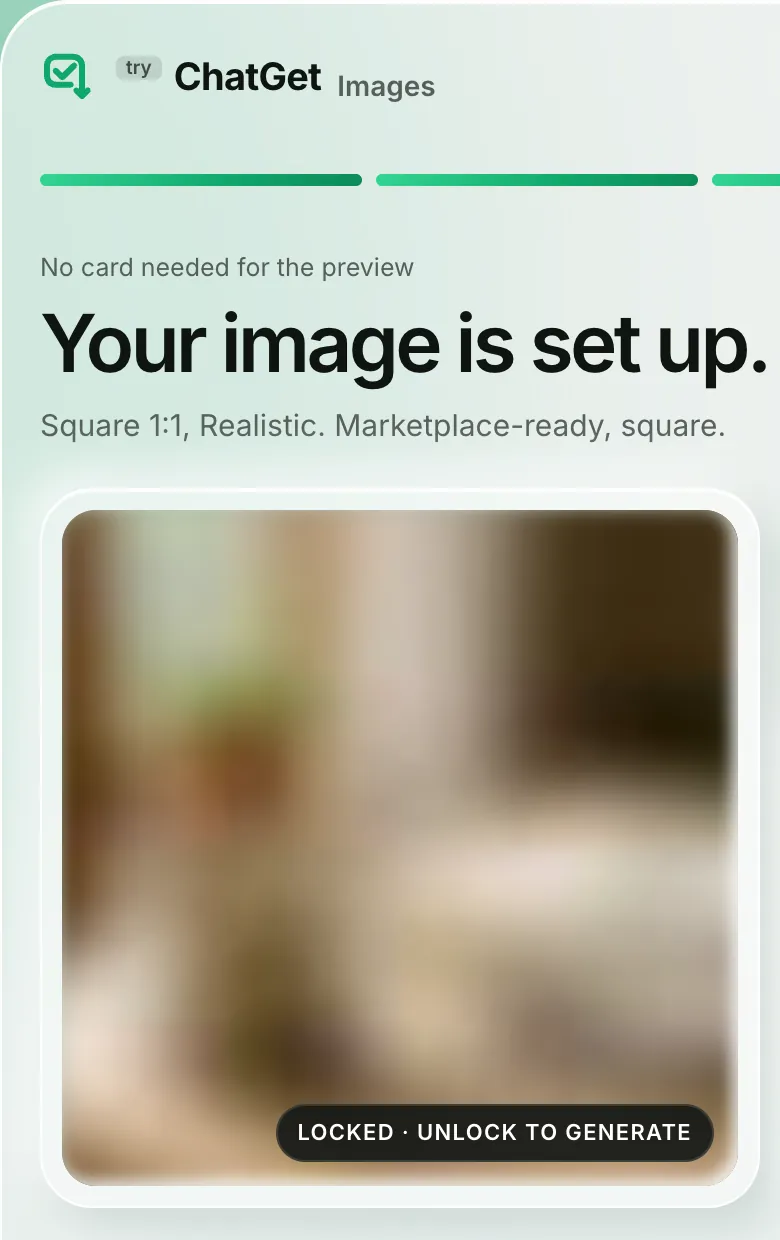
- You start with a sentence. A guided start sets the size, style and model for the job, and shows a blurred preview of your result before you pay, with no account and no card.
- Your images live in the new Images workspace with the settings that made them, so you can make variants, upscale, edit and download later.
- From 16 to 30 September 2026, 99% of people whose image request we accepted got their image, and the median wait was 9.4 seconds. How we count
- TryChatGet is a web app that puts AI image and chat models from several providers in one place. For text jobs, see which AI is best for writing, coding and teaching.
Six real examples of what an AI image generator can do
What TryChatGet Images does today, told as six short stories: who needed what, what they typed, and what came back.
Illustrative stories, not customer reviews. Each one follows a kind of request people bring to TryChatGet Images.
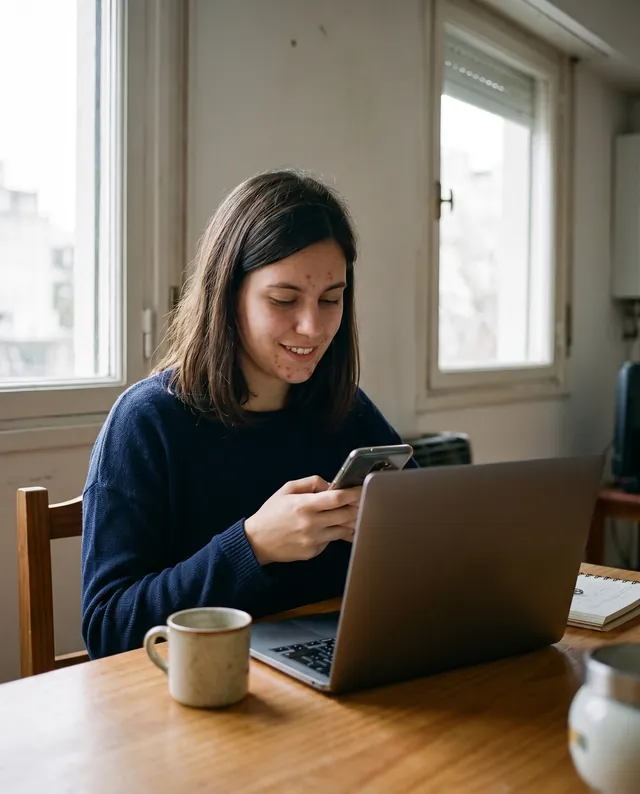
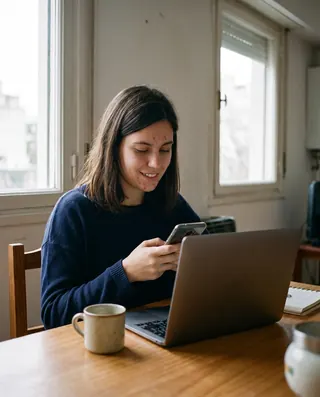
Camila, 26: Removing people and acne from a photo
Applying for her first office job · Buenos Aires, Argentina
ProblemHer favorite photo had two strangers behind her and a breakout on her chin.
Camila is applying for her first office jobs and needed a profile photo. The one she liked was from a Sunday street fair in San Telmo: soft light and a real smile, but two strangers right behind her and a breakout that week. She uploaded it and asked TryChatGet to remove both and leave everything else as it was.
What she typedRemove the people and the acne
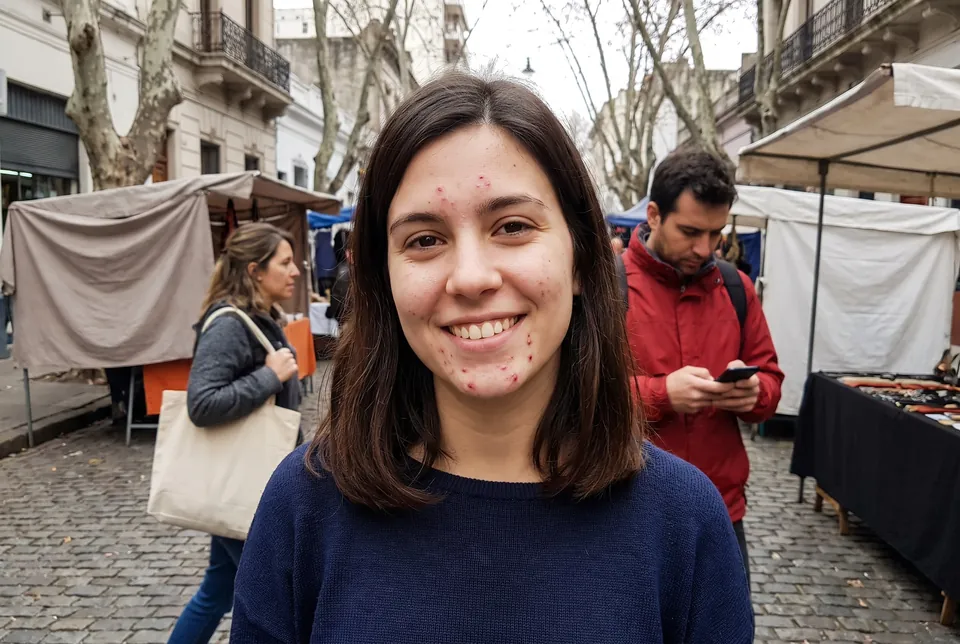
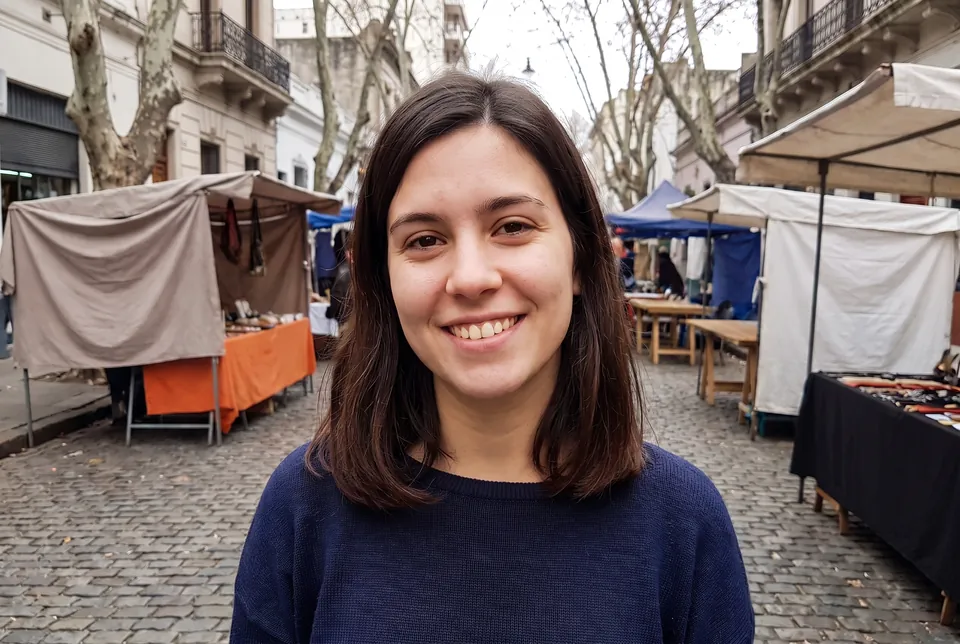
Remove the people in the background and clear the acne on my face. Keep my face, expression, hair, clothes and the light exactly as they are.
Also good for removing tourists, wires or a stray object
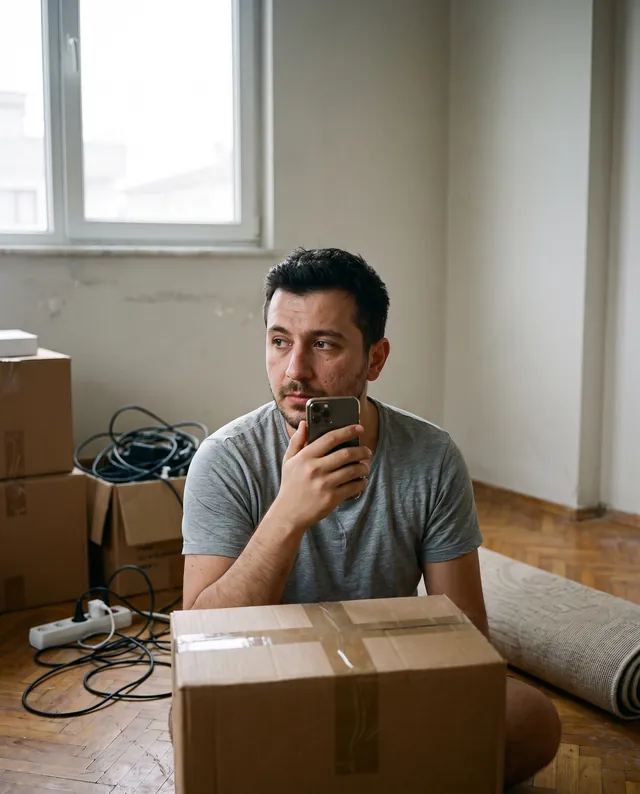
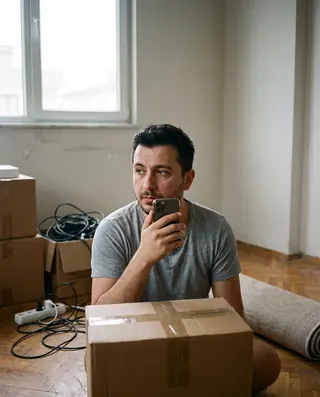
Emre, 29: Clearing clutter from a room photo
Moving into his first flat · İzmir, Turkey
ProblemHe couldn’t picture the corner finished before buying a plant.
Emre’s new flat still had boxes and cables in the corner by the window. He took one photo of it and asked TryChatGet to clear the clutter and add a large monstera, so he could see the room the way he planned it before going to the plant shop.
What he typedClear the boxes, add a monstera
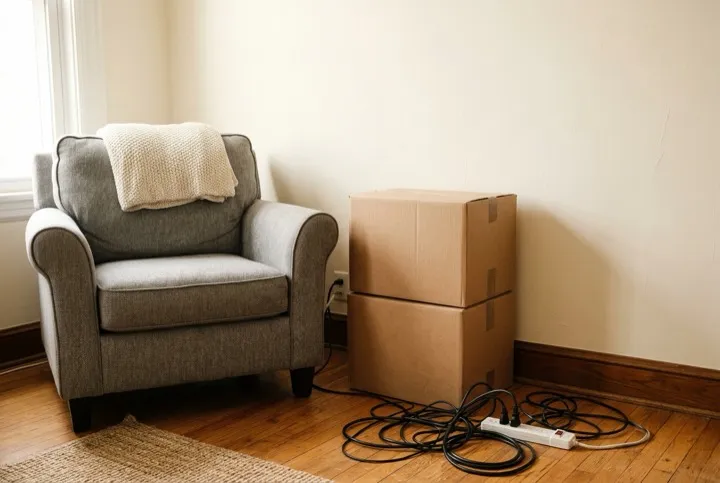
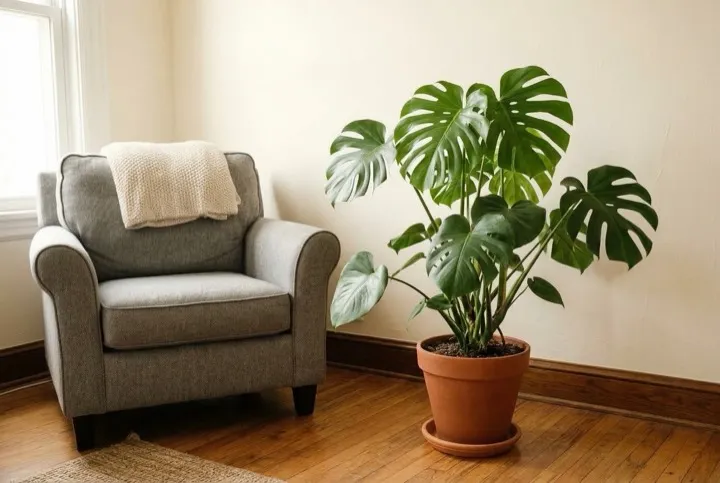
Remove the boxes and cables in the corner and add a large monstera in a terracotta pot there. Keep the room, the light and the angle the same.
Also good for fixing a product photo or removing a detail
Lucía, 27: Turning a portrait into vector art
Web designer · Lima, Peru
ProblemHer profile photo looked nothing like her design work.
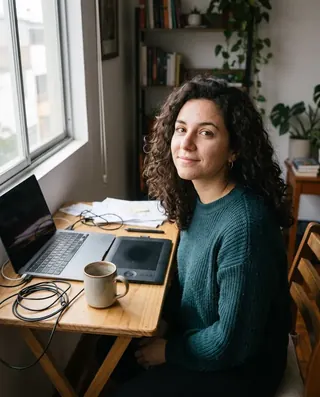
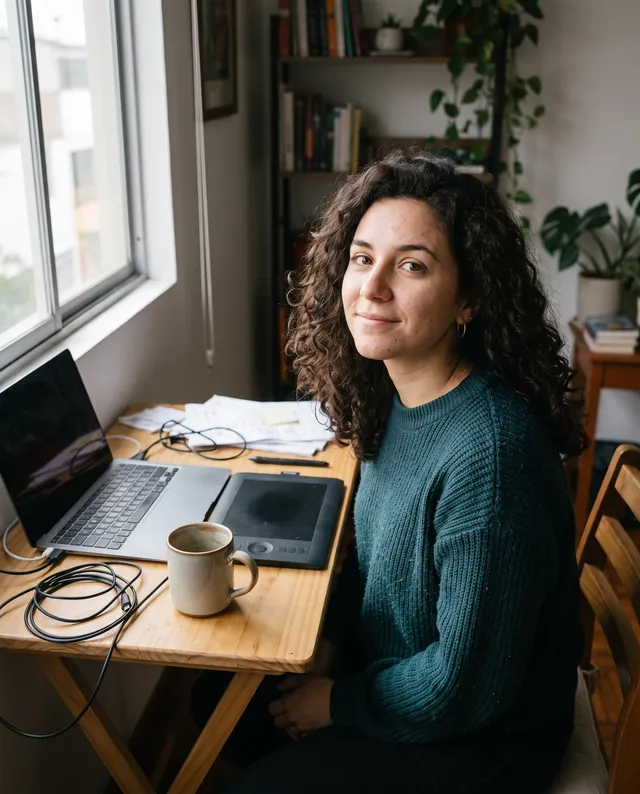
Lucía designs websites for small shops, in a flat, colorful style. For her new freelance profile she wanted a picture that matched her work, not another selfie. She uploaded a photo a friend took of her in the park and asked for vector art. The result kept her face, her curls and her green sweater.
What she typedTurn this portrait into vector art
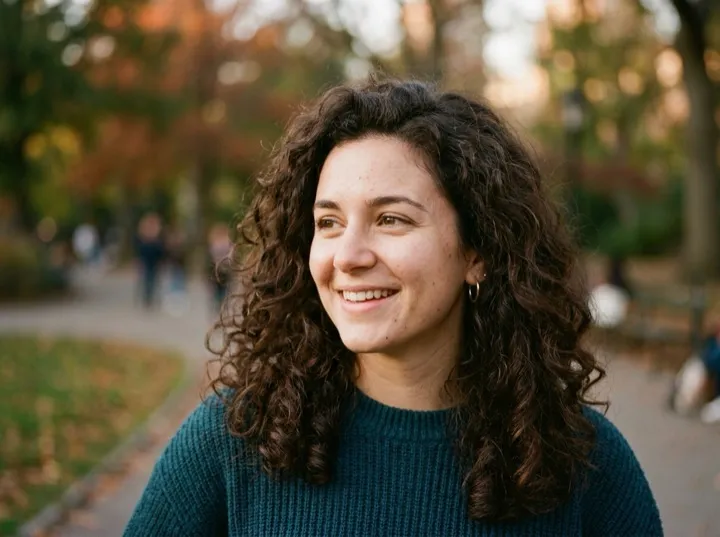
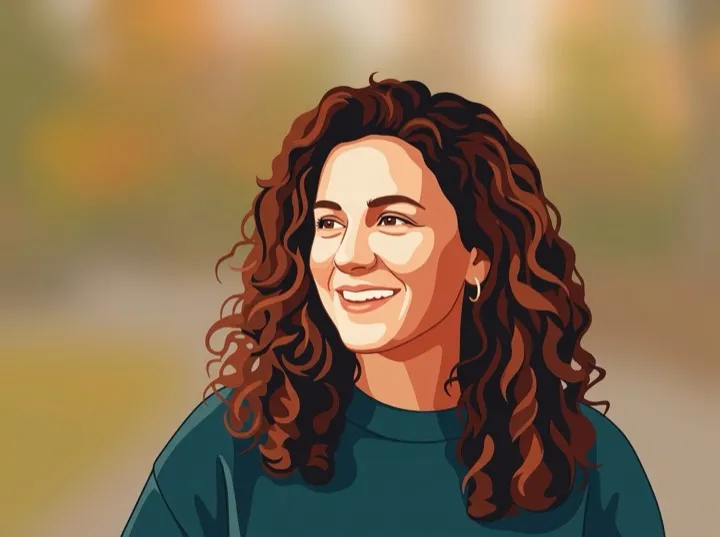
Turn this portrait into flat vector art with bold shapes and warm colors. Keep the face, hair and clothes recognizable.
Only upload photos of people who have agreed to it
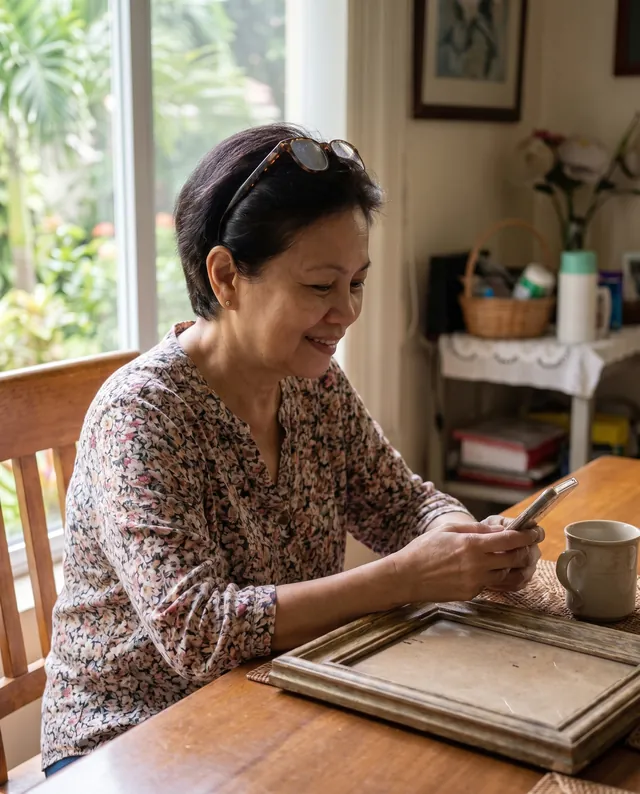
Joy, 52: Sharpening a blurry photo
Teacher · Cebu, Philippines
ProblemHer only photo of a street in Spain came out blurry.
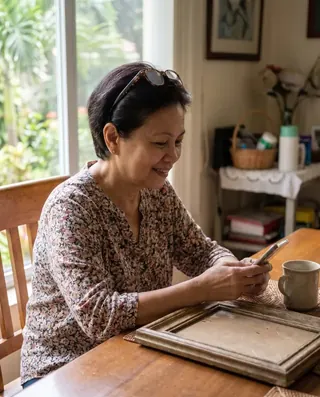
Joy took the photo from the window of a moving tour bus on her first trip to Spain. Back home in Cebu, she asked TryChatGet to sharpen it, and the stones, the blue shutters and the bicycle came back sharp enough to print for her mother’s wall.
What she typedSharpen this blurry street photo
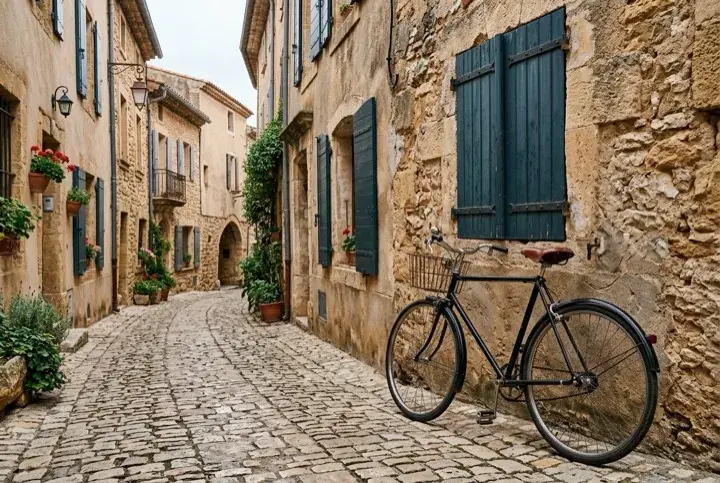
In this demo, the “before” is the same photo, softened
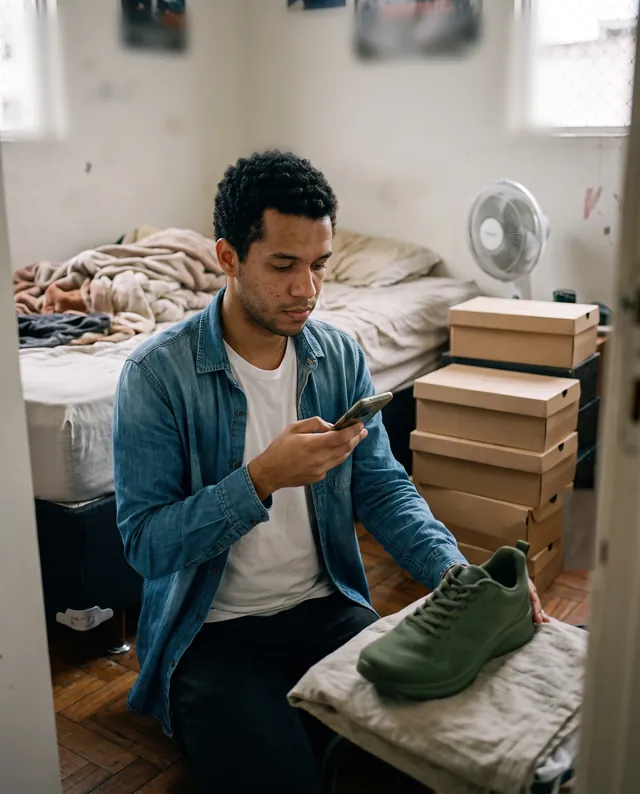
Rafael, 24: Removing the background from product photos
Sneaker reseller · São Paulo, Brazil
ProblemEvery sneaker photo had a different, messy background.
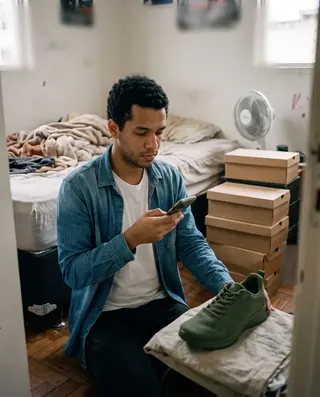
Rafael sells sneakers online from his apartment and shoots wherever the light is good: the bedroom floor, the windowsill, the hallway. He wanted every listing to look the same, with just the shoe on a plain background. Now he uploads each photo, asks for the shoe on white, and gets it back cut out, ready for the listing.
What he typedCut out the shoe, put it on white
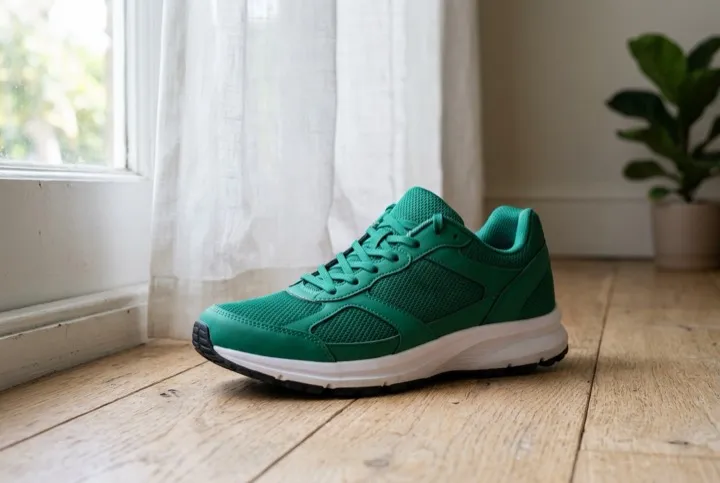
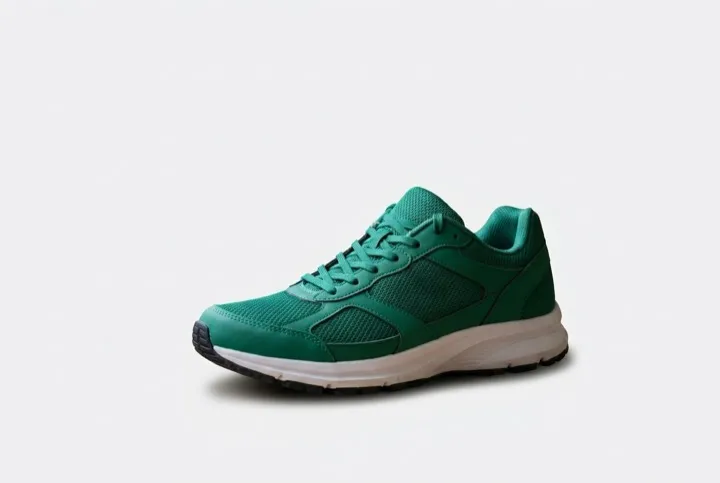
Also good for catalogs and presentations
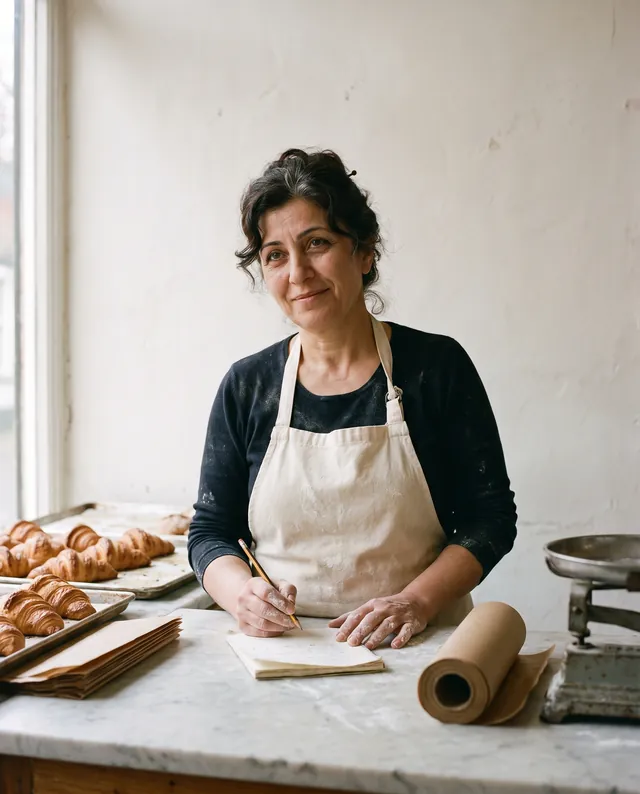
Ayşe, 41: Making a logo for a bakery
Baker · Istanbul, Turkey
ProblemHer bakery had a name, Nova, but no logo yet.
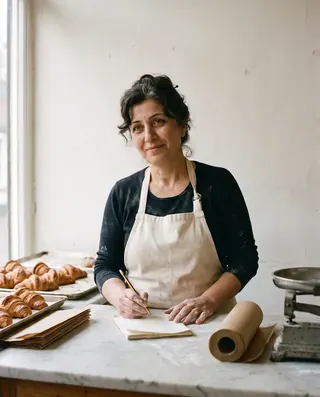
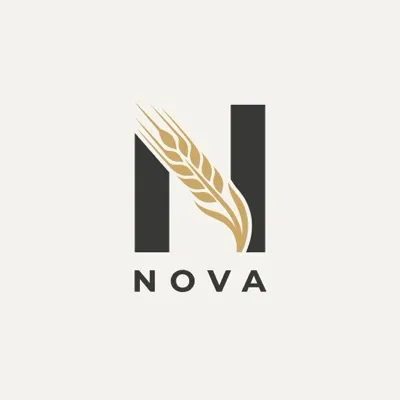
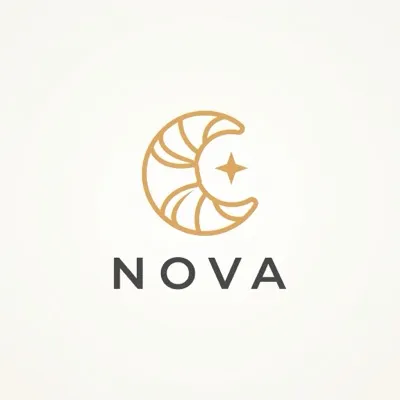
Ayşe is opening a small croissant bakery and settled on the name months ago. She needed a logo for the sign, the paper bags and the Instagram page. She typed the name and what the bakery makes, compared the directions side by side, and picked the crescent-moon croissant to refine.
What she typedLogo for Nova, a croissant bakery
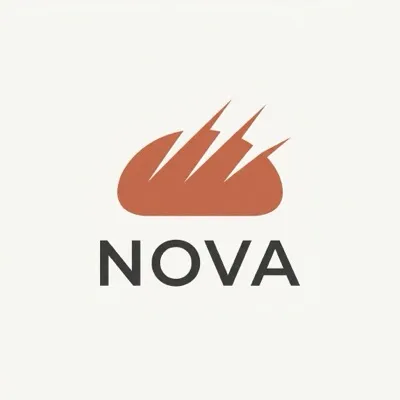
Also good for a side project or an event
Already in a chat? With Pro, ask for an image in any conversation and TryChatGet makes it right there, next to your text.
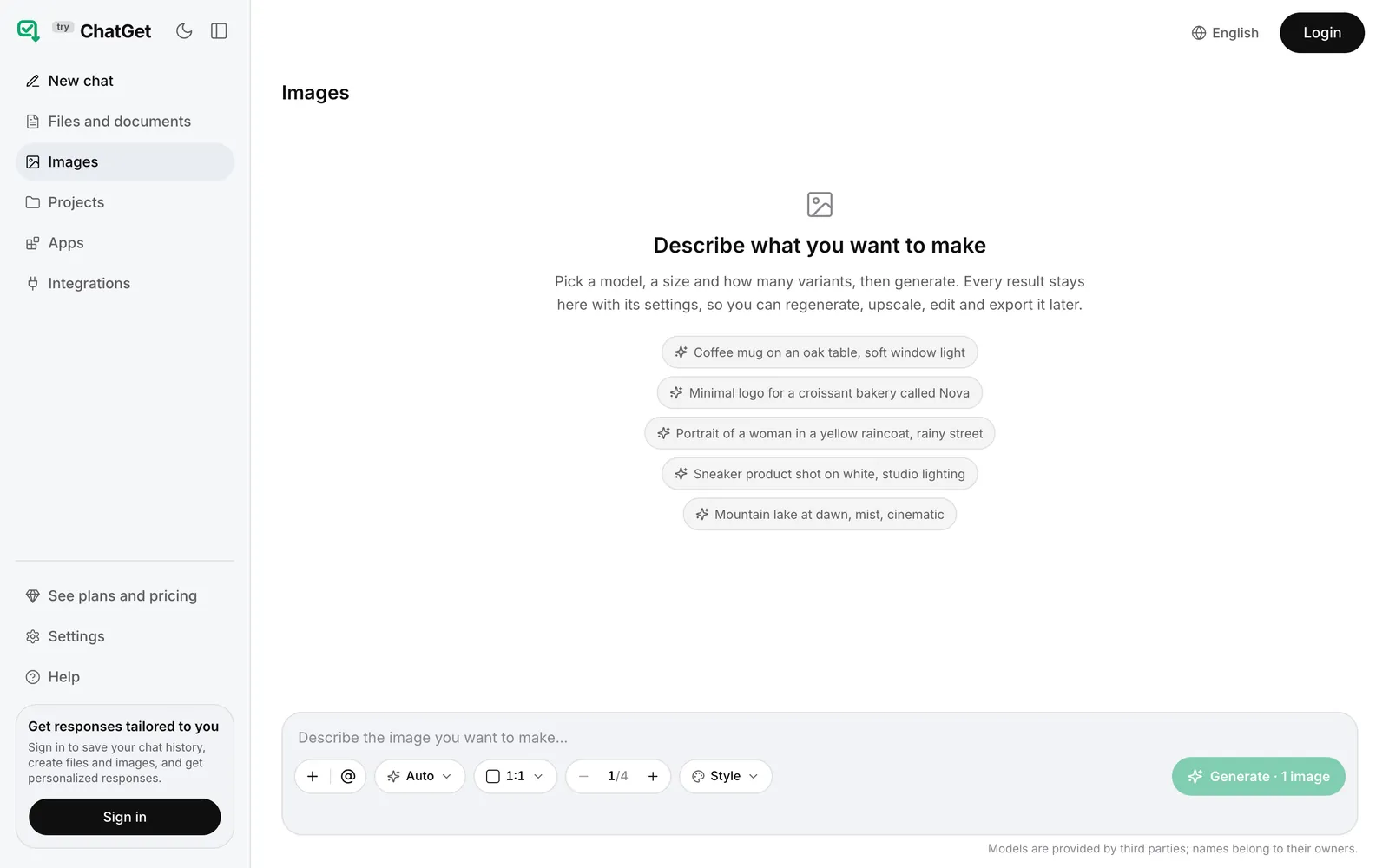
The new Images workspace
Images you make from a guided start now land in one place. Each result stays there with the settings that made it, so you can come back to regenerate it, upscale it, edit it and download it.
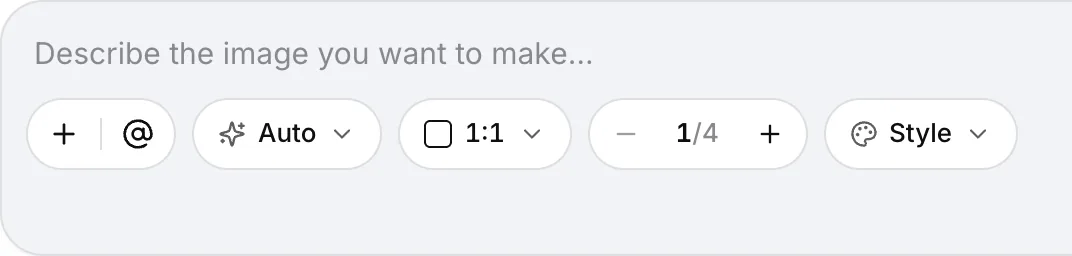
- Add a photo. Upload your own picture to edit, restyle or use as a reference.
- Model: Auto. Auto picks a model for your prompt. You can switch at any time.
- Size. Seven ratios, from square to ultrawide. See which size fits where.
- Variants. One to four images per run, so you can compare them and keep the one you like.
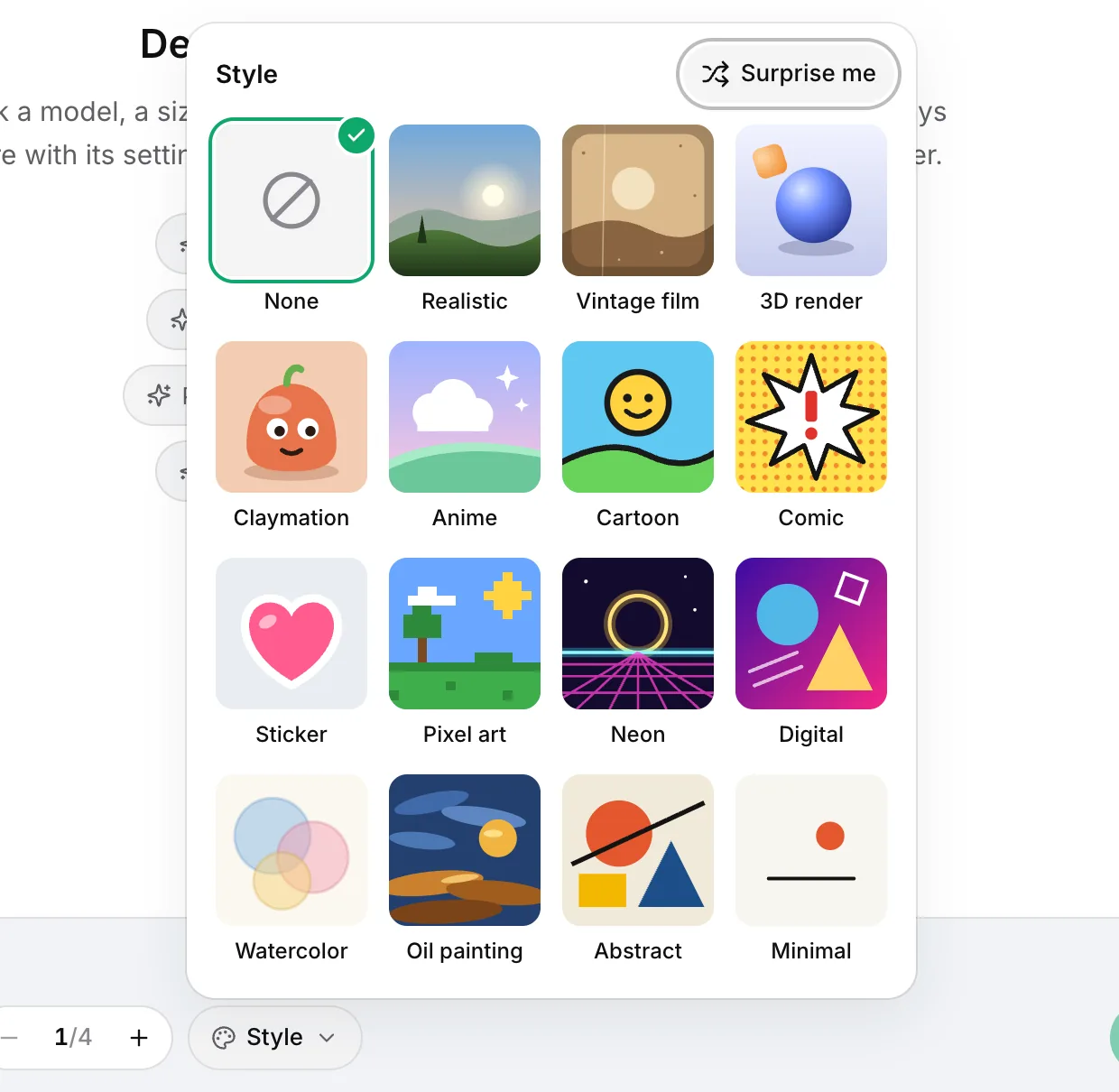
- Style. Fifteen looks, plus None and Surprise me.
Every result stays in the workspace with its settings, so you can regenerate it, upscale it, edit it and download it later, without starting over.
Fifteen looks, one tap
Pick a look instead of describing it. Style changes the finish, not the subject.
- Realistic
- Vintage film
- 3D render
- Claymation
- Anime
- Cartoon
- Comic
- Sticker
- Pixel art
- Neon
- Digital
- Watercolor
- Oil painting
- Abstract
- Minimal
- None
- Surprise me
New here? Start from a job
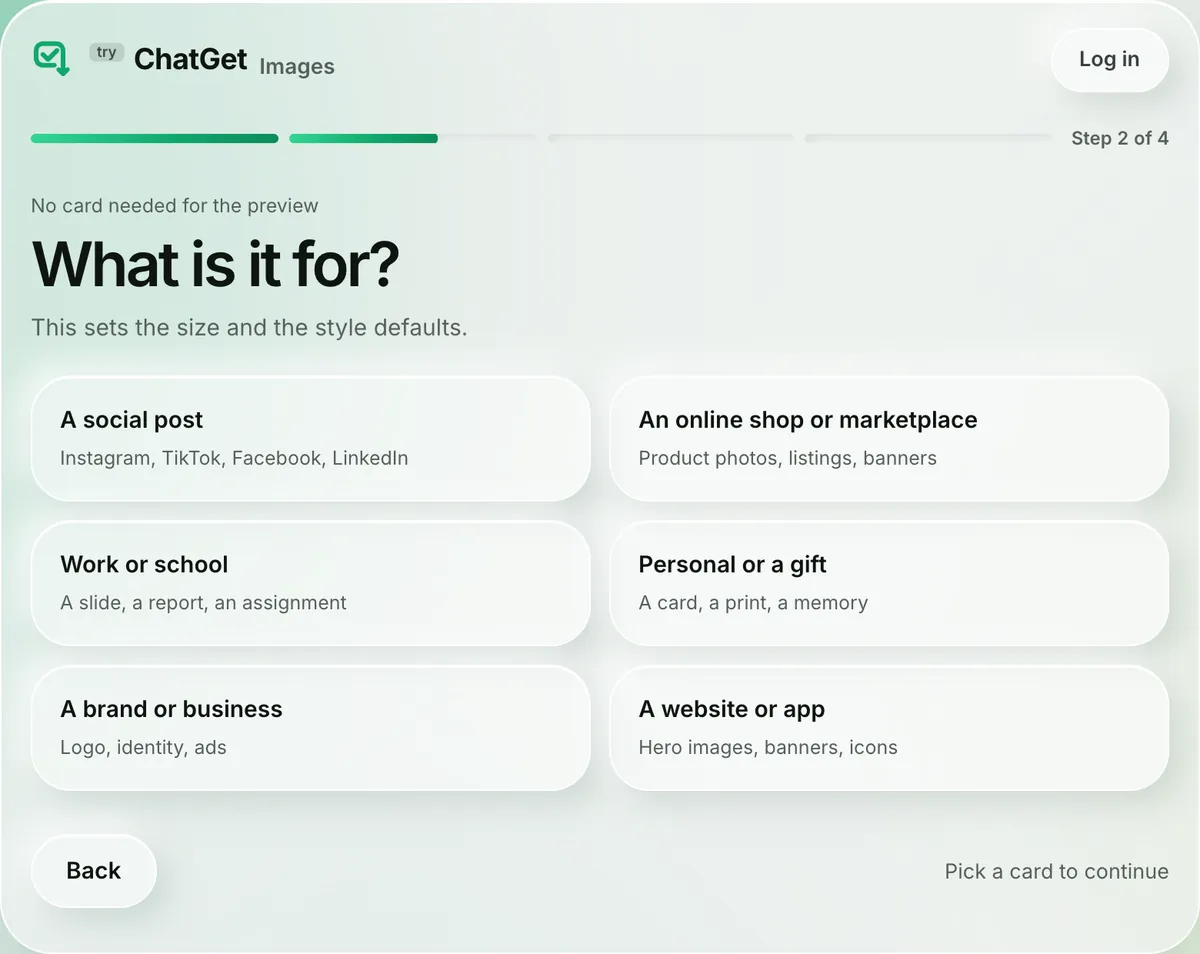
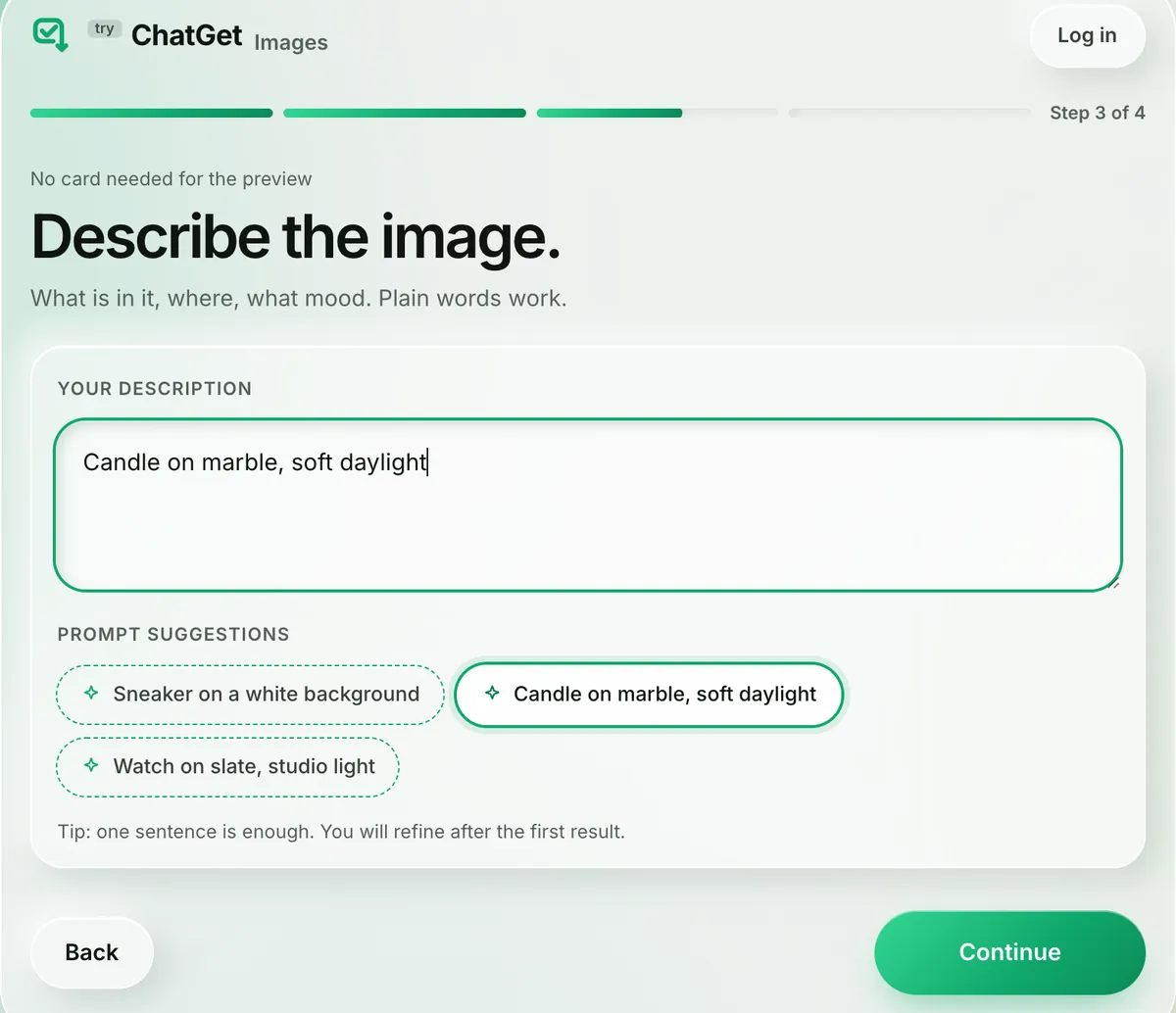
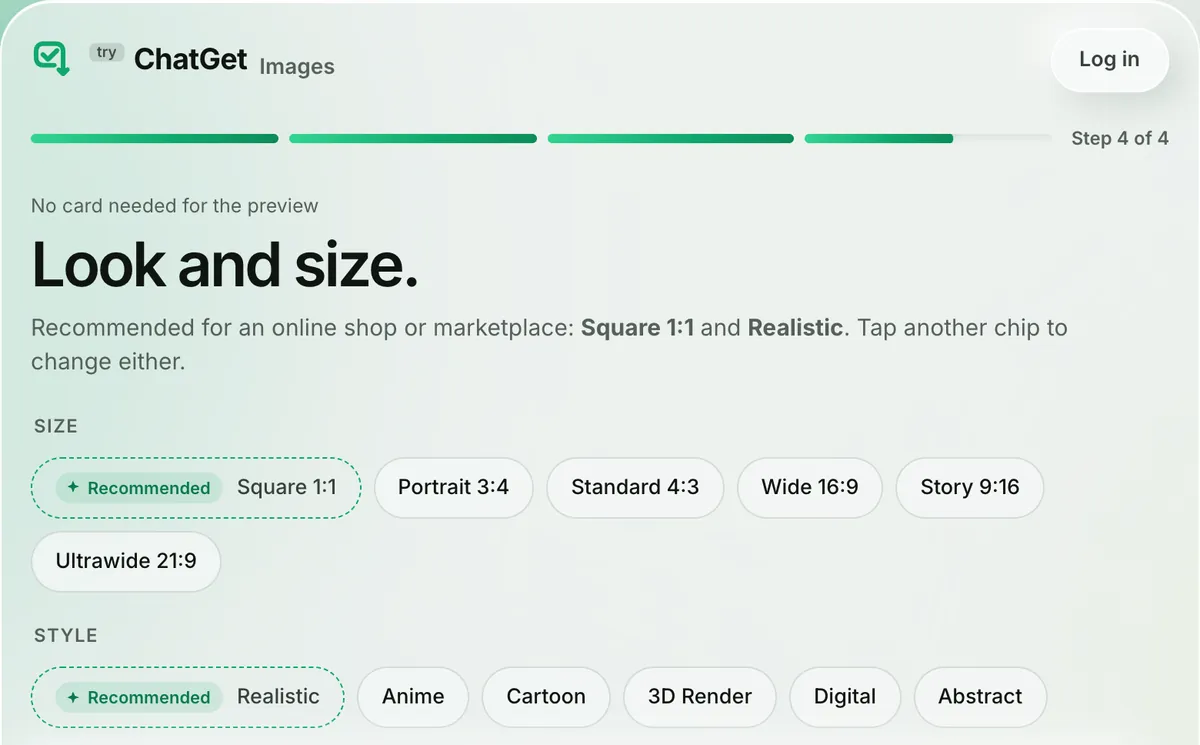
The guided start asks four short questions, then shows a preview. It sets the size, style and model for you, and you can change any of them.
How we compare with typical AI image tools
We compare with the category, not with named products. Claims about other tools come from our own review of 13 image tools that run search ads. Claims about us come from our own data.
Before your first image
A blurred preview of your actual result. No account, no card.
An account at the first Generate.
5 of the 6 AI image generators we tried. The sixth asked after one image.How your allowance is counted
In images: 100 a day on Pro, reset at 00:00 UTC.
In credits or tokens, which you convert into images yourself.
8 of the 13 image tools we read.Category review: 13 image tools that run search ads, read on 28 September 2026. Sign-up walls were tested logged out from Poland; plans were read on the tools’ US pricing pages. We don’t name them, because we compare with the category, not with brands.
Our own numbers, 16 to 30 September 2026
From our product analytics, for every image request made in a chat. We publish the misses as well as the hits.
of people whose image request we accepted got their image
of accepted requests delivered on the first try
median wait for a finished image
How we count
- Accepted means we started working on it. Not counted: requests refused under our content policy (105), edits sent without a photo (4), requests from people without a plan, who were asked to subscribe, and requests the person cancelled.
- Misses (210 of 1,861): 181 were “too many images running at once” refusals, 22 were generation errors and 7 were other refusals. Most people tried again and got their image, which is why the per-person figure is higher.
- Not in these numbers yet: images made in the new workspace and in the guided start. We’ll add them once a full month of data is in.
- We have no comparable measurement of other services, so we don’t publish one. We update these numbers every month.
What people say about their images
We’re adding a thumbs up or down, and an optional comment, under every image in TryChatGet. This section will show what people think of their images:
- the share of images rated thumbs up, and how many ratings that’s based on;
- the same split for each of the six jobs;
- comments people agreed to share, unedited.
We’ll publish it monthly, starting with the first full month of ratings.
Get a good image on the first try
Describing it
Name the thing, the place and the light.“Candle on marble, soft daylight” gets you further than “a nice candle photo”.
Edit your own photo one change at a time.“Remove the cables”, then “add a plant”, is easier to get right than both at once.
Words in the picture? Put them in quotes.Keep them short and give the exact spelling.
Choosing settings
Pick the size by where the image is going.A listing, a story and a slide each want a different shape. The sizes below cover the common ones.
Use Style for the look.Choose Watercolor or Pixel art instead of describing the technique in words.
Not sure? Ask for variants.Up to four per run. Keep the one you like and build on it.
Pick the size by where the image goes
Marketplace listings (Amazon requires a square main image), LinkedIn and Facebook posts, logos
Instagram and Facebook feed posts
Instagram’s tall feed format, posters, prints close to A4
Stories, Reels, TikTok, phone wallpapers
Etsy listings, blog images, classic slides
YouTube thumbnails, slides, website hero images
Website banners and headers
Based on each platform’s published image specs, read in September 2026. The guided start offers six of these sizes; 4:5 is in the workspace.
Questions people ask
What can I make with TryChatGet Images?
Six jobs have a guided start: an image from words, a photo edit, a restyled photo, a sharper photo, a cut-out on a clean background, and a logo. In the Images workspace you can also describe any other image.
Do I need an account to try it?
No. The guided start shows a blurred preview of your result with no account and no card. Downloading in full resolution, making variants and editing need Pro, a subscription that renews until you cancel. Prices are on the pricing page.
How many images can I make?
Pro includes a daily allowance counted in images: 100 a day today, reset at 00:00 UTC. Regenerating a result counts as a new image.
Which model makes my image?
Auto picks a model suited to the job from the image models live in TryChatGet. You can switch models at any time from the same menu. Model names belong to their providers, and the list changes as providers release and retire models.
Can I use the images commercially?
You own what you generate from your own inputs, subject to each model provider’s terms, which we link in the Terms. Don’t upload photos you have no right to use.
What happens to the photos I upload?
They’re used to produce your result and are handled as described in the Privacy Policy. Don’t upload photos of people who haven’t agreed to it.
How do I cancel?
Any time, in Manage subscription. You keep access until the end of the period you’ve paid for.
Where do the numbers on this page come from?
From our own product analytics: every image request made in a chat between 16 and 30 September 2026 (how we count). Claims about other tools come from our review of 13 image tools that run search ads, made on 28 September 2026. We update the numbers monthly.